
Adding Passkey (WebAuthn) Two-Factor Auth to an Existing CodeIgniter Shield App
Passkeys let a user confirm their identity with Face ID, Touch ID, a security key, or their device’s screen lock — no code to type, nothing to copy from an app. This post walks through installing Shield Passkey MFA and rolling it out to an existing site, so current users can add a passkey from a settings page rather than being forced through it at signup.
Unlike a single authenticator-app secret, a user can register several passkeys — their phone, their laptop, a hardware key kept as backup — so this plugin manages a genuine list per user, not just a single on/off toggle.
What you get, at a glance
- Passkey as a two-factor method after a normal password login
- Optional passkey enrollment prompted right at registration
- A self-service page so users can add, rename, or remove passkeys any time after signup
- Step-up re-verification for sensitive pages (billing, account deletion, etc.), independent of ordinary login
- Two optional “skip the password entirely” shortcuts for the login page itself
- Full test coverage for everything that doesn’t require real cryptography, plus extensive, hard-won documentation on the things that do
Before you start: two things that will bite you if skipped
- Your $rpId must be your app’s real domain — exactly. No https://, no port, no trailing slash. Just example.com (which also covers subdomains i.e. app.example.com). Get this wrong and every passkey ceremony fails outright — this is a browser-enforced security rule, not a label you can set arbitrarily.
- Passkeys require HTTPS, or localhost exactly. Testing over plain HTTP on anything other than localhost itself — including 127.0.0.1 or a .test or .local domain — will not work. The browser refuses to run WebAuthn outside a secure context. Either test on a real localhost URL, or set up HTTPS (a self-signed cert is fine) for local testing on any other hostname.
What you’ll need
- A CodeIgniter 4 app already running CodeIgniter Shield.
- Composer access to your project.
- A modern browser for testing — Chrome 122+, Safari 17.4+, or current Firefox (older browsers need a small JavaScript change; see the plugin’s full README).
1. Install the package
composer require cloudrepublic/shield-passkey-mfa web-auth/webauthn-lib
Then run the setup command:
php spark passkey-mfa:setup
This publishes the config and language files into your app.
2. Set your app’s identity
In app/Config/PasskeyMfa.php (or via .env), set:
public string $rpName = 'Your App Name';
public string $rpId   = 'example.com'; // see the gotcha above
3. Run the migration
php spark migrate --all
Why –all? CodeIgniter’s migration locator finds migrations from every registered namespace, not just your app’s — a plain php spark migrate with no flags won’t pick this package’s table up on its own.
4. Register the login action
In app/Config/Auth.php:
public array $actions = [
    'register' => null, // existing site: no registration-time prompt needed
    'login'    => \PasskeyMfa\Authentication\Actions\PasskeyMfa::class,
];
As with rolling out any MFA method to an existing site, we’re leaving ‘register’ alone — existing users need a way to opt in from their account settings, not a sudden prompt at their next signup (which doesn’t apply to them anyway).
5. Add the routes
Copy the relevant routes from the package’s routes-snippet.php into app/Config/Routes.php, and link to account/passkeys from wherever your account settings page already lives.
6. Test it in a real browser before going live
This is worth calling out on its own: passkey verification is cryptography-heavy enough that “the code looks right” is less reassuring here than for a simpler plugin. Actually register a passkey and log in with it, in a real browser, before trusting this in production.
Walking through the user experience
Settings page
A user visiting account/passkeys sees a list of their registered passkeys (empty, to start) with an “add a passkey” option.
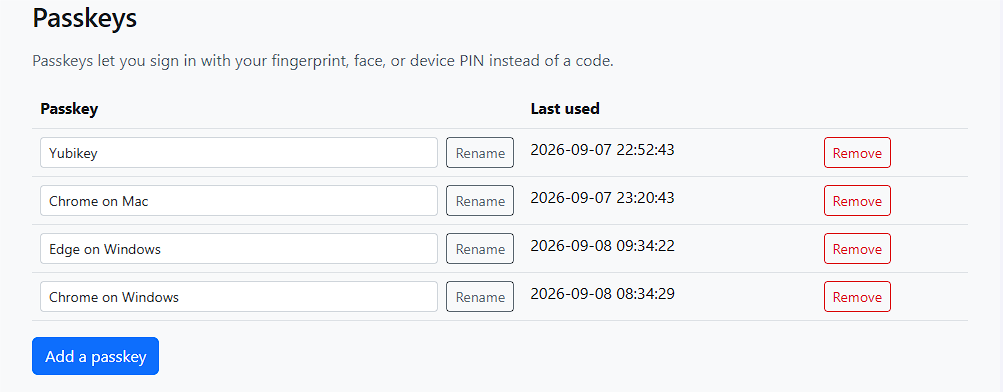
The passkey settings page, showing a list of passkeys created and an “Add a passkey” button.
Registering a passkey
Clicking through the ‘Add a passkey’ button just asks for an optional name to be provided for this passkey.
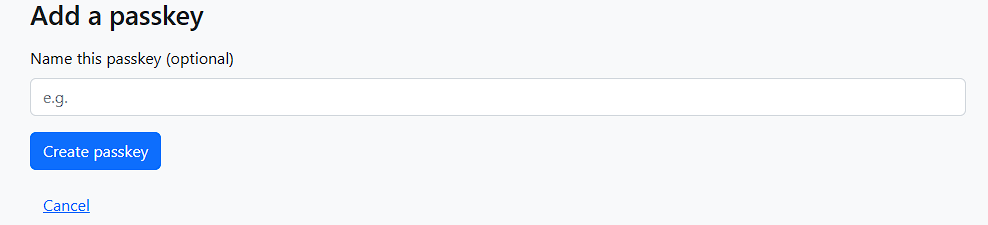
Add a passkey registration prompt.
On hitting the Create passkey, that triggers the browser’s own native passkey prompt — Face ID, Touch ID, a security key, or whatever the device offers.
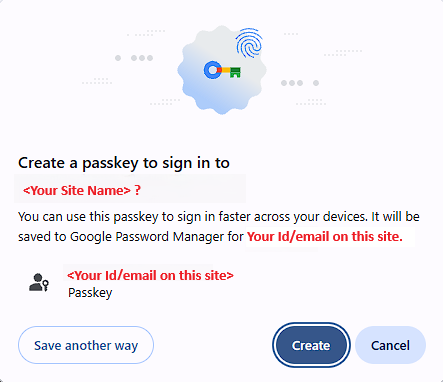
The browser’s native passkey registration prompt.
Once confirmed, the new passkey appears in the list, seen earlier, labelled so the user can tell devices apart later (e.g. “iPhone,” “YubiKey”).
Users can add more from the same page, a laptop, a backup hardware key, and rename or remove any of their own passkeys at any time.
Logging in afterward
From their next login onward, after entering their password they’ll be prompted for a passkey, using the same native browser prompt as registration.
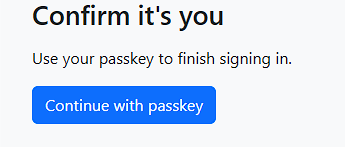
The login-time passkey prompt.
Optional: extra protection for sensitive pages
Just like TOTP, you can require a fresh passkey challenge before reaching a specific sensitive page, even for an already logged in user:
- Register the filter in app/Config/Filters.php:
public array $aliases = [ 'passkey-fresh' => \PasskeyMfa\Filters\RequireFreshPasskey::class, ]; - Apply it alongside your normal login filter:
$routes->group('admin/billing', ['filter' => ['session', 'passkey-fresh']], static function ($routes) {
     $routes->get('stripe-settings', 'Admin\BillingController::index');
     $routes->post('stripe-settings', 'Admin\BillingController::update');
 });
A user reaching that page without a recent-enough passkey challenge (15 minutes, by default) is sent to a short challenge page first, then returned to where they were headed.
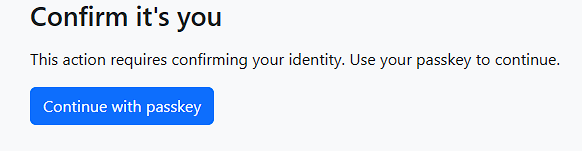
The step up challenge prompt.
Feature: Optional passkey enrollment at signup
By default, users have to visit a settings page later to add a passkey (see below). If you’d rather prompt them right at registration, register PasskeyActivator as your ‘register’ action instead of leaving it null:
In app/Config/Auth.php:
public array $actions = [
    'register' => \PasskeyMfa\Authentication\Actions\PasskeyActivator::class,
    'login'    => \PasskeyMfa\Authentication\Actions\PasskeyMfa::class,
];
New users are prompted to set up a passkey immediately after signing up, with a “skip for now” option so it never blocks anyone who’d rather do it later (or not at all).
Feature: Self-service passkey management
account/passkeys gives an already logged in user their own page to add, rename, or remove passkeys — the natural place to send people who skipped enrollment at signup, or who want to register a passkey on a second device. Users can register more than one passkey; there’s no limit to one per account, which matters if someone uses more than one device or browser regularly.
Feature: Step-up re-verification for sensitive pages
Ordinary login MFA happens once per session. For genuinely sensitive actions — changing billing details, deleting an account, you may want a fresh passkey verification regardless of how long ago the person logged in. The RequireFreshPasskey filter does exactly this, independent of the normal login flow entirely:
In app/Config/Filters.php:
public array $aliases = [
    'passkey-fresh' => \PasskeyMfa\Filters\RequireFreshPasskey::class,
];
In app/Config/Routes.php:
$routes->group('admin/billing', ['filter' => ['session', 'passkey-fresh']], static function ($routes) {
    // routes for changing payment details, etc.
});
The freshness window is configurable; by default, a verification older than a set number of minutes triggers a fresh challenge before the protected page loads.
Feature: Trigger a passkey prompt from the login form itself (no button click needed)
Off by default, and worth turning on if you want your login page to feel like GitHub’s or Microsoft’s: when a returning user clicks into the email field, their passkey appears in the browser’s own autofill dropdown, right alongside any saved usernames. Choosing it signs them straight in, with no password typed at all. Anyone without a passkey just ignores it and types their email and password as normal. Nothing ever pops up on its own. To see what this feels like before turning it on, try webauthn.io: register a test passkey, reload the page, and click into the empty username field.
Turn it on via Config\PasskeyMfa::$enablePasskeyAutofill = true, add the routes from routes-snippet.php, and copy src/Assets/passkey-login.js into your own login page’s JavaScript. The script adds the webauthn hint to the email field’s autocomplete attribute for you, which is what tells the browser to list passkeys there.
Feature: A standalone “Login with a passkey” button (no email needed either)
A second shortcut: a plain button that needs no email or username input at all. Click it, and the browser’s own passkey picker opens straight away, showing whichever passkeys it has for your site. It’s useful for visitors who’d rather click a button, and for older browsers that don’t support passkey autofill.
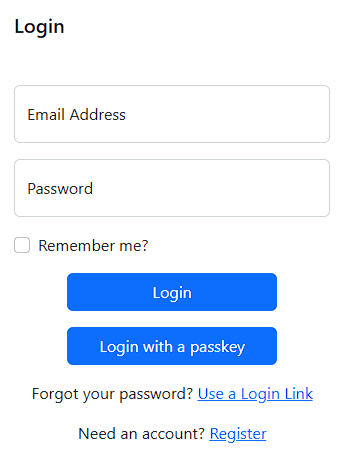
This is the “discoverable” or “usernameless” style of passkey login, and it depends on passkeys having been registered as discoverable in the first place (Config\PasskeyMfa::$residentKeyRequirement, default ‘preferred’) — true passkey managers in modern browsers do this by default, so this generally works without extra configuration.
Turn it on via Config\PasskeyMfa::$enableDiscoverableAuthentication = true, then add a button to your login page,
<button type="button" id="passkey-discoverable-login">Login with a passkey</button>and use the same passkey-login.js file — both this feature and the email-blur one above live together in a single file, so you only need to include it once regardless of which (or both) you use.
One real trade-off worth knowing before you rely on this: if someone has multiple accounts or profiles signed into the same browser, its own picker can occasionally offer “use a different account,” which, if chosen, leads to a scenario where a user can potentially pick an invalid identity for your site and can take the browser a little while to give up on. This was never a security issue (passkeys are cryptographically bound to your specific site, so a mismatched credential can never actually be used to sign in as someone else), just a UX dead end which can have some strange behaviors. The package includes a 20-second client-side timeout so this recovers quickly rather than leaving the page looking stuck.
A note on cross-device behavior
Passkeys sync within whichever ecosystem created them — Apple’s iCloud Keychain, Google Password Manager, Microsoft’s own system — but not across them. A passkey created in Chrome on a Mac won’t automatically appear in Edge on a Windows PC. This isn’t a bug in this package; it’s how passkeys work everywhere. If a user needs a passkey on a new device or browser, they can log in with another method first, then visit account/passkeys to register one there too.
Should you use shield-mfa-dispatcher too?
If you want to offer passkeys alongside other MFA methods (TOTP, WhatsApp codes) and let each user (or your admin policies) choose, pair this with shield-mfa-dispatcher, a separate package that routes login and step-up challenges to whichever method actually applies per user, without you having to hand-wire the logic yourself.
Before you go live
- Test every flow (registration, login, step-up, and whichever optional login shortcuts you turn on) in real browsers with real authenticators — this is the one area of this package where reading the code isn’t a substitute for trying it.
- Double-check $rpId matches your real production domain.
- Confirm your app is served over HTTPS (or localhost for local development) — WebAuthn refuses to run anywhere else.
- If you turn on autofill or the login button, sign in once with a real passkey to check it’s offered, and read the trade-off note above.
That’s it
Existing users can now add one or more passkeys from their account settings and use them to log in — no codes, no authenticator app required. From here, the plugin’s full README covers browser-support notes, view overrides, and troubleshooting if you need to go further.
A Few Notes on Using Your Passkey on a New Device or Browser
If you’ve set up a passkey for two-factor authentication, you might run into something unexpected the first time you log in from a different computer, or even a different browser on the same computer: instead of your passkey working automatically, you’re prompted for a passkey you don’t have – and there’s no obvious way to get past it.
This isn’t a bug, and it isn’t something we can simply switch off – it’s how passkeys work everywhere, on every site that uses them. Here’s why, and what to do about it.
Why this happens
A passkey isn’t stored “in your account” the way a password is. It’s stored and synced by whichever platform created it – Apple’s iCloud Keychain, Google Password Manager, or Microsoft’s own passkey system – and those three don’t share passkeys with each other.
So if you created your passkey in Chrome on a Mac, it’s synced via Apple or Google’s own system, depending on your settings. Open Microsoft Edge on a Windows PC, and you’re in an entirely different ecosystem – one that has never seen that passkey, and can’t retrieve it. It’s not that the passkey has gone missing; it simply was never registered there in the first place.
You’ll see the same thing switching between:
- Different browsers on the same computer (Chrome vs. Edge vs. Firefox)
- Different operating systems (Mac vs. Windows vs. Linux)
- A new or reset device that hasn’t been set up with your usual passkey provider yet
What to do if you’re locked out on a new device or browser
If a passkey is your only two-factor method and you’re on a device or browser that’s never seen it before, follow these steps:
Step 1 – On a device/browser where your passkey already works:
Log in as normal, then go to your account’s two-factor authentication settings and switch your 2FA method to something else you have access to (for example, an authenticator app or WhatsApp code), just temporarily.
Step 2 – On the new device or browser:
Log in using that other method instead. Once you’re logged in, go to Account → Passkeys and add a new passkey right there. This registers a passkey specifically for this device/browser combination – completely independent of the one you already have elsewhere.
From that point on, both devices/browsers will have their own working passkey, and you can switch your 2FA preference back if you’d like.
A tip for going forward
If you regularly use more than one device or browser, it’s worth registering a passkey on each of them from the start, rather than waiting to get locked out first. Your account settings page supports adding as many passkeys as you need – one per device is a perfectly normal setup, not a workaround.
If you only ever use one device, this won’t affect you at all – this only comes up the moment you try logging in somewhere new.
Questions about setting this up, get in touch