
Adding Authenticator-App Two-Factor Auth to an Existing CodeIgniter Shield App
If your app already has users, you can’t just bolt two-factor auth onto the registration flow and call it done — most of your accounts already exist. This post walks through installing Shield TOTP MFA and turning it on for an existing site, so current users can opt in from a settings page rather than being forced through it at signup.
By the end, your users will be able to scan a QR code with Google Authenticator, Microsoft Authenticator, Authy, or 1Password, and use a 6-digit code from that app to log in.
What you’ll need
- A CodeIgniter 4 app already running CodeIgniter Shield for authentication.
- Composer access to your project.
- A few minutes of downtime-free deploy — nothing here requires taking the site offline.
1. Install the package
composer require cloudrepublic/shield-totp-mfa
Then run the setup command, which publishes the config and language files into your app the same way Shield’s own does:
php spark totp-mfa:setup
2. Set an encryption key (if you don’t have one already)
Unlike a one-time code, a TOTP secret has to stay decryptable so it can be checked on every login — it’s encrypted at rest, not hashed. If your app doesn’t already have an encryption key set:
php spark key:generate
3. Run the migration
php spark migrate --all
4. Register the login action
In app/Config/Auth.php
public array $actions = [

        'register' => null, // existing site: no registration-time prompt needed

        'login'    => \TotpMfa\Authentication\Actions\TotpMfa::class,

];
We’re leaving ‘register’ alone here deliberately — on an existing site, forcing every new signup through TOTP setup while every existing user has no way to opt in yet would be a confusing, inconsistent experience. The settings page below is how existing users turn it on instead.
5. Add the routes
Copy the relevant routes from the package’s routes-snippet.php into app/Config/Routes.php. For an existing-site rollout, at minimum you want the standalone settings page routes:
$routes->get('account/totp', 'TotpMfa\Controllers\TotpSettingsController::index', ['filter' => 'session']);


$routes->get('account/totp/enroll', 'TotpMfa\Controllers\TotpSettingsController::enroll', ['filter' => 'session']);


$routes->post('account/totp/confirm', 'TotpMfa\Controllers\TotpSettingsController::confirm', ['filter' => 'session']);


$routes->post('account/totp/disable', 'TotpMfa\Controllers\TotpSettingsController::disable', ['filter' => 'session']);
(Check routes-snippet.php for the exact, up-to-date route definitions — the above is illustrative.)
6. Set your app’s name
In app/Config/TotpMfa.php (or in .env):
public string $issuer = 'Your App Name';
This is what shows up above the 6-digit code in the user’s authenticator app, so they can tell your account apart from every other TOTP entry they have.
7. Link to the settings page
Add a link to account/totp from wherever your account settings page already lives — this is the entry point for existing users.
Walking through the user experience
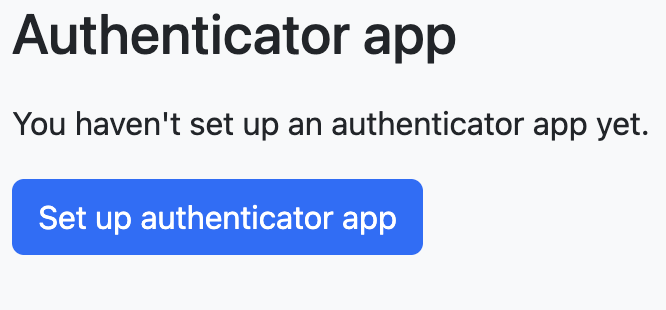
Status page
A user visiting account/totp for the first time sees a simple button to enable and setup the authenticator.
Enrollment
Clicking through takes them to a QR code, plus the secret as plain text for anyone who can’t scan (e.g. setting up on the same device).
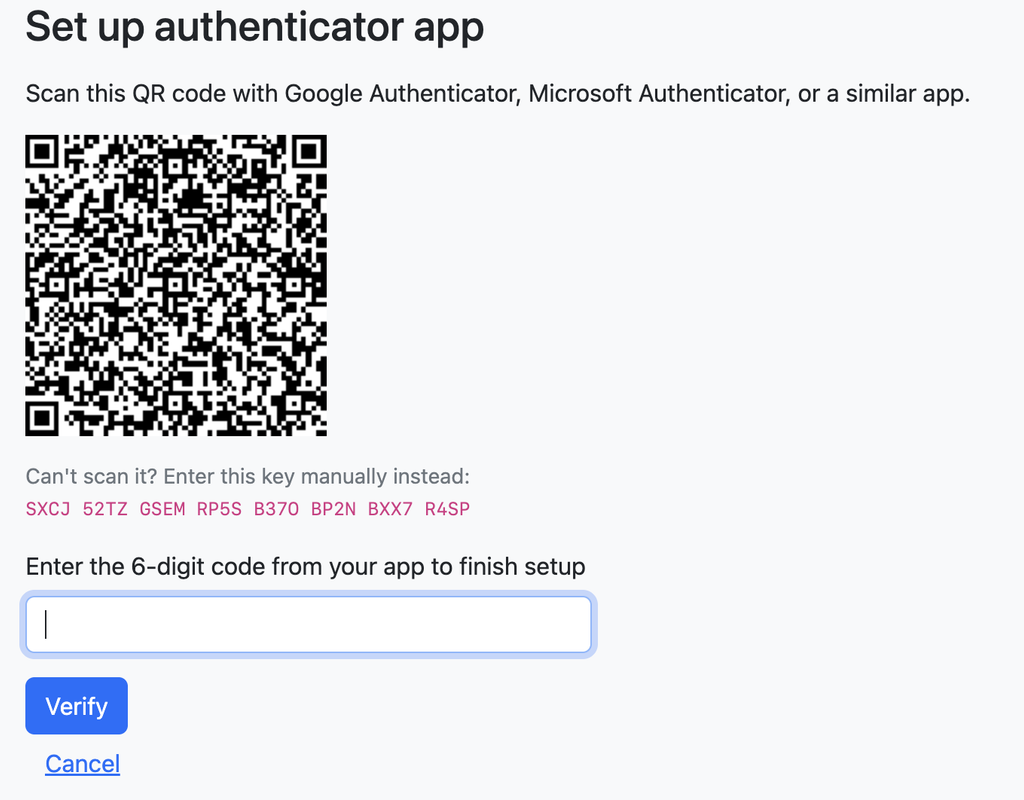
Once the user is able to verify the code presented by the authenticator app the user’s preference will be updated to use the authenticator for all future login attempts.
Logging in afterward
From their next login onward, after entering their password, they’ll be asked for a code from their authenticator app.
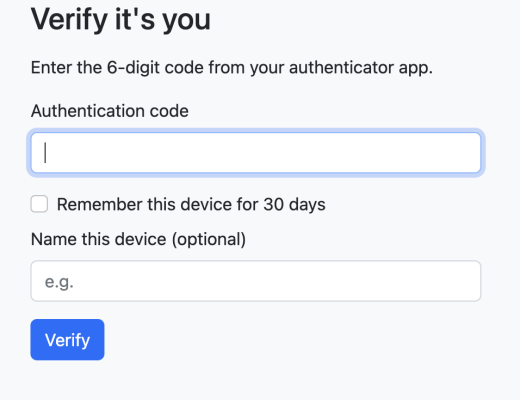
The login-time code prompt.
There’s also an optional “remember this device” checkbox that skips this prompt on that browser for a configurable number of days.
Turning it off
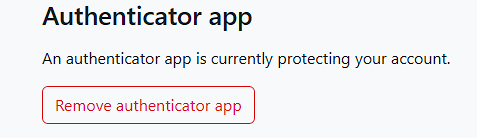
The user can navigate to account/totp to remove the authenticator from their account.
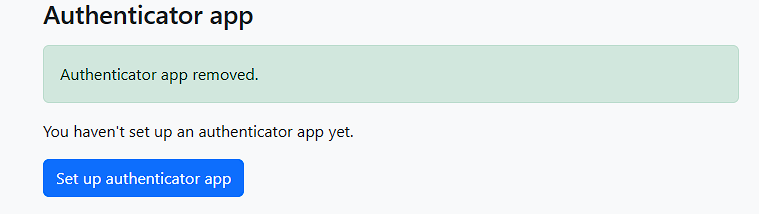
Once the user confirms the removal they can use the same page to reactivate TOTP if required.
Remembered Devices
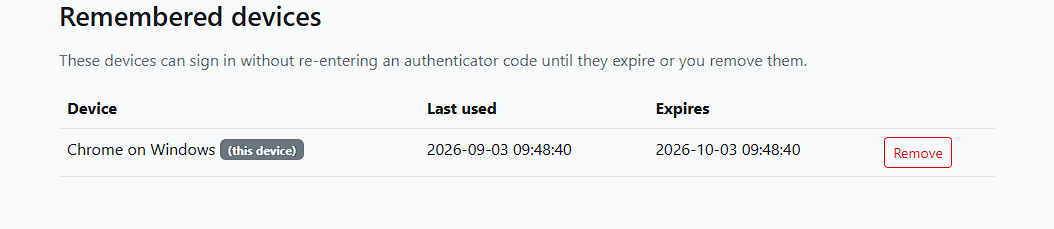
If the user checks the box to remember this device when signing in, it will allow them to skip the TOTP login code prompt for the configured set number of days. To view or revoke any of the devices for this user’s account they can navigate to account/devices where they can review the devices linked to their account.
Optional: rolling it out as mandatory later
If you eventually want to require TOTP rather than leave it optional, set this in app/Config/TotpMfa.php:
public bool $forceEnrollmentOnNextLogin = true;
The next time an unenrolled user logs in, they’ll be walked through the same QR-code setup, as part of that login attempt, before they can continue.
Optional: extra protection for sensitive pages
For pages like billing or security settings, you can require a fresh TOTP challenge even for users who are already fully logged in, the same pattern Stripe, GitHub, and AWS use before letting you touch account-level settings.
Register the filter in app/Config/Filters.php:
public array $aliases = [
    'totp-fresh' => \TotpMfa\Filters\RequireFreshTotp::class,
 ];
Apply it to the routes that need protecting via the filters or directly in app/Config/Routes.php:
$routes->group('admin/billing', ['filter' => ['session', 'totp-fresh']], static function ($routes) {
    $routes->get('stripe-settings', 'Admin\BillingController::index');
    $routes->post('stripe-settings', 'Admin\BillingController::update');
 });
A user reaching that page without a recent-enough TOTP challenge is sent to a short code-entry page first, then returned to where they were headed, independent of the “remember this device” cookie, and on a much shorter timescale (15 minutes by default).
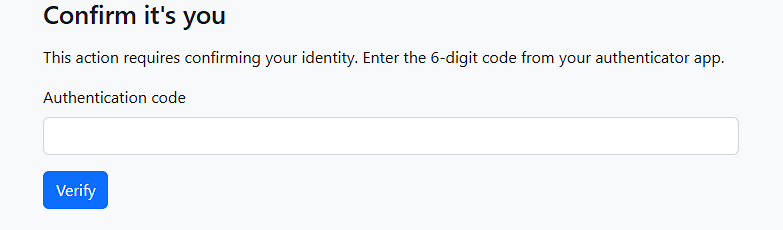
The step up challenge page.
That’s it
Existing users can now turn on authenticator-app two-factor authentication from their account settings, with no disruption to anyone who hasn’t opted in yet. From here, the plugin’s full README covers additional pieces — remembered-device management, view overrides, and troubleshooting, if you need to go further.
Questions about setting this up on your own site, get in touch.