
Adding WhatsApp Two-Factor Auth to an Existing CodeIgniter Shield App
Not every user wants to install an authenticator app, and email codes can be slow to arrive or land in spam. Shield WhatsApp MFA sends a 6-digit one-time code over SMS/WhatsApp instead — this post walks through installing it and letting existing users verify a WhatsApp number themselves, rather than requiring one be on file already.
It follows the same show() / handle() / verify() lifecycle as Shield’s own built-in Email2FA — this plugin just swaps the delivery channel.
What you’ll need
- A CodeIgniter 4 app already running CodeIgniter Shield.
- Composer access to your project.
- A WhatsApp Business sender — either Meta’s Cloud API or Twilio (both supported; Meta’s Cloud API is the default).
- An approved authentication-category message template from whichever provider you use. This is a WhatsApp Business requirement, not something this plugin can work around: you can’t send free-form OTP text outside an existing conversation.
1. Install the package
composer require cloudrepublic/shield-whatsapp-mfa
Then run the setup command:
php spark whatsapp-mfa:setup
This publishes app/Config/WhatsAppMfa.php and the language file into your app.
2. Register the login action
In app/Config/Auth.php:
public array $actions = [
    'register' => null, // existing site: no registration-time prompt needed
    'login'    => \WhatsAppMfa\Authentication\Actions\WhatsAppMfa::class,
];
As with the other MFA plugins, we’re leaving ‘register’ alone here — existing users need a way to verify a number from their account settings, not a prompt at a signup that already happened.
3. Add your provider credentials
In .env (Meta Cloud API shown — see Config/WhatsAppMfa.php for the Twilio equivalent):
whatsAppMfa.phoneNumberId = "1234567890"
whatsAppMfa.accessToken   = "EAAG..."
Never commit real tokens — .env is git-ignored by default in CodeIgniter 4 apps.
4. Set your approved message template
In app/Config/WhatsAppMfa.php, set $metaTemplateName (or $twilioContentSid for Twilio) to match the template name your provider approved for you.
5. Add the self-service settings routes
Copy the settings-page routes from routes-snippet.php into app/Config/Routes.php, and link to account/whatsapp from wherever your account settings page already lives. This is what lets an existing user verify their own number, rather than your app needing to already have one on file for every account.
If you’d rather use a phone number your app already stores instead of self-service verification, set $phoneNumberField in Config/WhatsAppMfa.php to whatever property your User entity exposes it as. Both can coexist — the self-service verified number is checked first, with your existing field as a fallback.
Walking through the user experience
Verifying a number
A user visiting account/whatsapp enters a phone number.
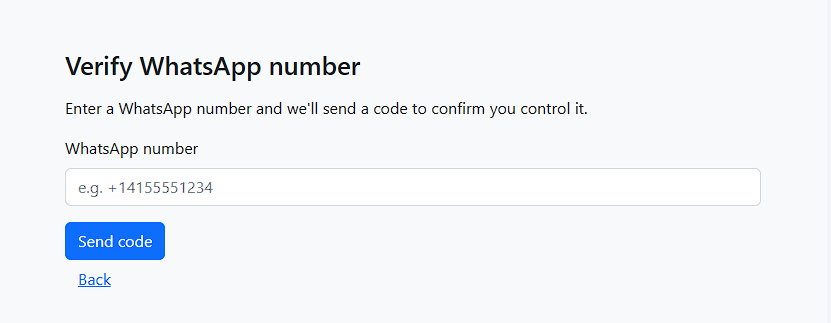
A 6-digit code is sent to that number, and they confirm it on the next page.
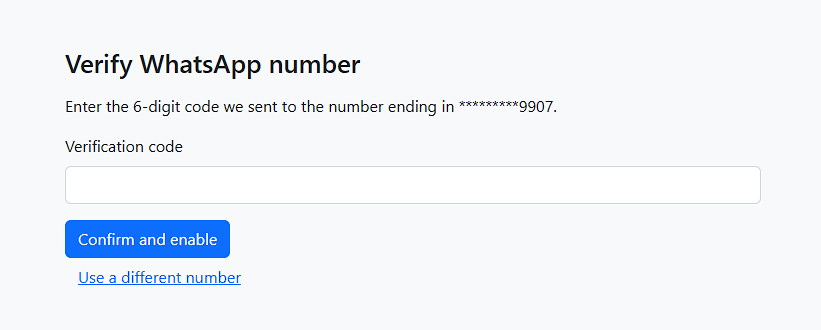
Once confirmed and enabled, that number becomes their permanent, verified one — used for every future login until they change or remove it from the same settings page. Visiting account/whatsapp, once a number is verified, allows them to change their number or remove it altogether.
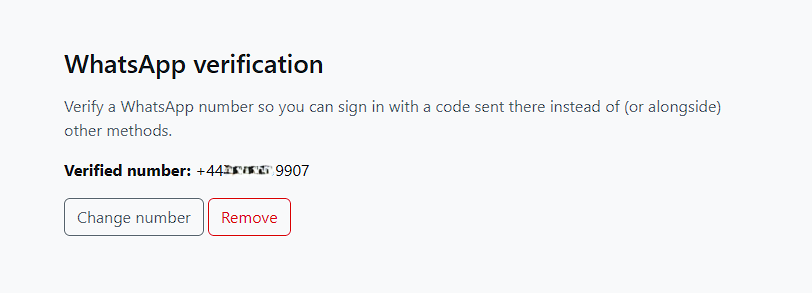
The settings page showing a verified number (obscured just in this image), with options to change or remove it.
Logging in afterward
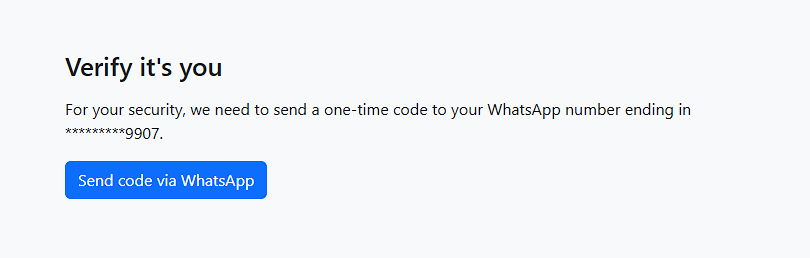
From their next login onward, after entering their password they’re told a code is on its way, then asked to enter it.
Followed by the code entry form.
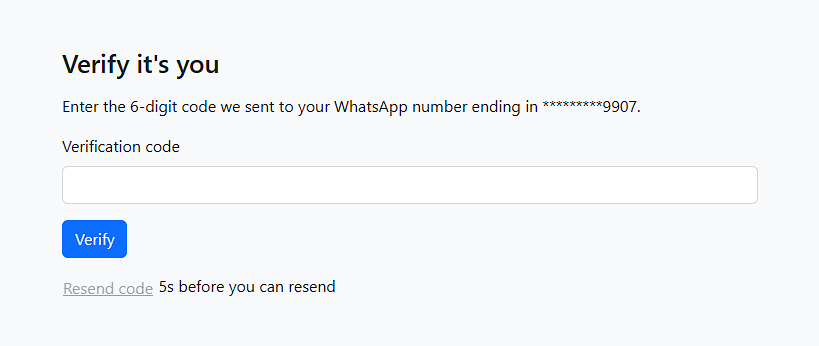
There’s a resend option if the code doesn’t arrive right away.
A distinction worth understanding: verifying a number isn’t the same as turning MFA on
Verifying a WhatsApp number on the settings page and WhatsApp actually being used at login are two separate things, depending on your setup:
- If WhatsAppMfa is registered directly as Auth::$actions[‘login’] (as in step 2 above), it already runs for every login attempt once installed — verifying a number here just controls which number it sends the code to.
- If you’re using Shield MFA Dispatcher alongside this plugin, a user also needs to separately choose “WhatsApp” as their preferred method from the dispatcher’s own settings page, even after verifying a number here.
Optional: extra protection for sensitive pages
Just like the other MFA plugins, you can require a fresh WhatsApp challenge before reaching a specific sensitive page:
- Register the filter in app/Config/Filters.php:
public array $aliases = [ 'whatsapp-fresh' => \WhatsAppMfa\Filters\RequireFreshWhatsApp::class, ]; - Apply it alongside your normal login filter:
$routes->group('admin/billing', ['filter' => ['session', 'whatsapp-fresh']], static function ($routes) {
    $routes->get('stripe-settings', 'Admin\BillingController::index');
    $routes->post('stripe-settings', 'Admin\BillingController::update');
 });
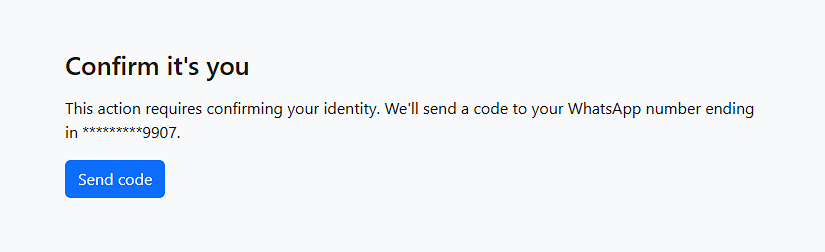
One difference from the TOTP/Passkey step-up filters worth knowing: WhatsApp’s step-up is a three-step flow rather than a single form — “we’re about to send a code,” then send it, then verify it — since, unlike an authenticator app or passkey, there’s genuinely a send step involved each time, the same as 2FA email login itself.
Someone attempting to access a page that requires an additional challenge, will be prompted first.
Then they enter the code they received:
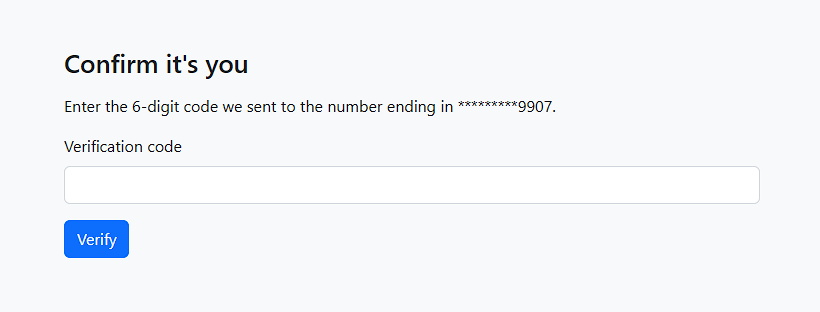
Upon a successful code being entered, the user will be taken to the requested page.
WhatsApp or SMS? Switching, Migrating Safely, and Keeping Shield Mfa Dispatcher in Sync
Shield-whatsapp-mfa has always used WhatsApp to deliver its one-time codes — but if you’re on Twilio, there’s no reason it has to. The same underlying phone number can usually send plain SMS too, and some users simply don’t have WhatsApp installed. This post covers three related things: a config switch to send via SMS instead, a safe way to migrate an existing user base from SMS to WhatsApp without anyone getting silently locked out, and — if you’re pairing this package with shield-mfa-dispatcher, the one extra line needed to keep that package’s own settings page honest about which channel is actually in use.
Switching to SMS
If you’re using TwilioWhatsAppSender, one setting controls the channel:
// app/Config/WhatsAppMfa.php
public string $channel = 'sms'; // default is 'whatsapp'
This is an app-wide toggle, not something a user picks for themselves — every user gets whichever channel you’ve configured. A few things worth knowing before you flip it:
You don’t need a second phone number. The same $twilioFromNumber is used for both channels — the sender strips or adds the whatsapp: prefix on that one configured value depending on which channel is active. This works because a Twilio number is commonly capable of both WhatsApp and SMS at once. If yours genuinely aren’t the same number on your account, update $twilioFromNumber to the SMS-capable one before switching.
WhatsApp’s Content Template requirement disappears entirely for SMS. If you’ve set $twilioContentSid for WhatsApp’s own pre-approved-template rule, it’s simply ignored once $channel is ‘sms’ — Twilio’s SMS API doesn’t have (or need) an equivalent, since SMS can always send free-form text regardless of session windows.
Every page updates itself automatically. Every string that used to say “WhatsApp” — the login prompt, the settings page, the enrollment flow — now reads correctly as “SMS” the moment you switch, without touching a single view or language file yourself. This works via a small class, WhatsAppMfa\Libraries\ChannelLabel, that resolves the current channel to a label and substitutes it wherever needed. You can still override the exact wording (channelLabel_sms, channelLabel_whatsapp in your own app’s language file) if “SMS” isn’t quite the phrase you want users to see, some apps prefer “text message,” for instance.
Migrating an existing user base from SMS to WhatsApp safely
Here’s the part worth being careful about, $channel is a single, app-wide setting. A user’s own MFA preference (‘whatsapp’, the method key) is stored completely separately from which channel actually delivers it — so someone who chose this method while you were on ‘sms’ keeps that same preference the moment you switch to ‘whatsapp’, with no grace period at all.
The risk is that this can fail silently. Twilio’s WhatsApp API accepts a send request regardless of whether the destination number can actually receive WhatsApp — the real failure (Twilio’s own error 30013, “Recipient not on WhatsApp”) only surfaces later, via an asynchronous delivery-status webhook this package doesn’t implement. So the send looks successful from the package’s own point of view, right up until the user never receives a code and can’t complete login.
The fix: a way to test WhatsApp delivery per user, independent of $channel, before you ever flip the switch. The self-service settings page (account/whatsapp) has a “Test WhatsApp delivery” action — it only appears while $channel is still ‘sms’ (once you’re already on WhatsApp, or using a sender with no channel concept at all, the normal verify flow already tests it directly, so there’s nothing extra to check). It sends a real WhatsApp message regardless of your current $channel setting, and on success, records that this specific number is confirmed to work over WhatsApp, a separate record from the main verified number, so testing it doesn’t touch or risk anything about how the user actually logs in today.
This turns the migration from “flip the switch and hope” into something you can actually verify in advance:
- Leave $channel on ‘sms’ for now.
- Ask users to visit account/whatsapp and use “Test WhatsApp delivery” at their own convenience — no urgency, since nothing changes for them until you flip the switch.
- Check progress any time with read-only command:
php spark whatsapp-mfa:channel-statusThis lists every user with a verified number, whether WhatsApp delivery is confirmed for it, and a summary count, add –unconfirmed-only to see just the users still needing to test.php spark whatsapp-mfa:channel-status --unconfirmed-only - Once enough (or all) of your users show as confirmed, switch $channel to ‘whatsapp’ with actual confidence, rather than finding out who’s affected after the fact.
One detail worth knowing: the confirmation tracks the specific number tested, not just a yes/no flag. If a user later changes their verified number, the old confirmation doesn’t carry over to the new one automatically — it correctly shows as unconfirmed again, since that new number was never actually tested.
If you’re also using shield-mfa-dispatcher’s $requiredMethodsForGroups, hold off on making WhatsApp required for any group until everyone in it shows as confirmed via the command above. A required method overrides a user’s own preference entirely, which removes their ability to fall back to a different method if their number turns out not to work.
This “test before switching” flow is deliberately kept off shield-mfa-dispatcher’s own settings page, even if you’re using both packages together — it’s a developer-facing migration tool, not something a regular end user needs to understand, so it stays specific to shield-whatsapp-mfa’s own settings page only.
If you’re not using TwilioWhatsAppSender’s channel toggle at all, none of this applies — the test action simply won’t appear.
If you’re using shield-mfa-dispatcher too
Shield-mfa-dispatcher’s own settings page (account/mfa) lists every available method with its own label — and by default, it has no idea $channel exists. Left alone, it would keep saying “WhatsApp code” on its method list even after you’ve switched everything over to SMS, since that page’s labels come from a static string, not from ChannelLabel.
One config entry fixes this:
// app/Config/MfaDispatcher.php
public array $methodLabelResolvers = [
    'whatsapp' => [\WhatsAppMfa\Libraries\ChannelLabel::class, 'current'],
];
Once this is in place, the dispatcher’s settings page — the method list, the “Active”/”Required” badges, the disable button, its confirmation prompt, the standalone WhatsApp enrollment sub-pages — all correctly say “SMS” too, kept in sync with whatever $channel is actually set to.
Why this is a config entry you add, rather than something wired in automatically: shield-mfa-dispatcher is deliberately built to know nothing about any specific method package — it only ever sees method keys you register yourself, resolved through generic, pluggable hooks. Reaching into shield-whatsapp-mfa’s own ChannelLabel class by name from inside the dispatcher’s own code would break that separation, and would mean the dispatcher couldn’t work the same way for a developer’s own custom method, or for a future method that also happens to have multiple delivery channels. $methodLabelResolvers is a method key → callable map, the dispatcher just knows “if something’s registered for this key, ask it for the label instead of using the static one.” It doesn’t know or care that the callable happens to come from a WhatsApp/SMS package specifically.
If you’re only using shield-whatsapp-mfa on its own, without the dispatcher, none of this config entry applies to you — ChannelLabel already does its job automatically on every page that package itself controls.
Quick reference
| Setting/command | Where | What it does |
|---|---|---|
| Config\WhatsAppMfa::$channel | shield-whatsapp-mfa | ‘whatsapp’ (default) or ‘sms’ — which channel Twilio actually sends through |
| “Test WhatsApp delivery” (account/whatsapp) | shield-whatsapp-mfa | Confirms WhatsApp works for a specific user’s number, independent of $channel — appears only while $channel is still ‘sms’ |
| php spark whatsapp-mfa:channel-status | shield-whatsapp-mfa | Read-only report of which users have confirmed WhatsApp delivery, for deciding when it’s safe to switch $channel |
| Config\MfaDispatcher::$methodLabelResolvers | shield-mfa-dispatcher | Only needed if you’re using both packages together — keeps the dispatcher’s own settings page reflecting the current channel |
All four are opt-in and safe to leave untouched if you’re happy with WhatsApp as the only channel — the defaults preserve exactly the behavior you already had before any of them existed.
That’s it
Existing users can now verify their own WhatsApp number and use it for two-factor authentication, with no need for your app to already have a phone number on file. From here, the plugin’s full README covers provider-switching, view overrides, and troubleshooting if you need to go further.
Questions about setting this up on your own site, get in touch.